

Frequently Asked Questions
Agents (SA/WA)
How can I change my Perfect Answer greeting at the beginning of calls?
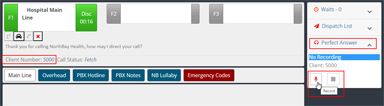
Perfect Answer recordings are saved on a per-client basis. To check or change your recording for an account: First, change to the desired client. Then open the sidebar, open the Perfect Answer tab, and select the record or play button. Perfect Answer needs to be licensed and configured to see this menu.
What are the three indicators at the bottom-right of Web Agent?
Web Agent Only
The left icon allows the operator to access an on-screen keyboard in the application.
“Connected”/”Disconnected” tells the operator if there is an active connection to the Genesis server. This is different than the ready/not ready icon which displays as a red or green phone icon.
The right icon allows the operator to show/hide the agent side bar within Web Agent.
How do I prevent operators from bypassing the Web Agent Shell application and using a browser instead to access Web Agent?
Web Agent OnlySupervisors can lock the Web Agent Shell settings to prevent operators from seeing the direct URL needed to access Web Agent through a browser.
I can hear the caller, but the caller cannot hear me. Or, I cannot hear the caller but they can hear me. What do I do?
The operator should try to re-establish audio. Verify the operators PC input audio is not muted, volume is set too low, or audio is set to the wrong device. The operator may also need to manually disconnect and then reconnect the audio device.
Soft Agent users – also verify in the Ctrl-F12 settings – Telephony – Audio; that the Microphone & Speaker Settings are pointed to the correct device.
There is also a Windows “sleep” setting for (all) USB devices that could impact headsets. It is located within Power Settings – disable the ‘USB selective suspend’ setting. This setting may not be accessible directly by the Windows user in which your Windows managment team will need to assist.
How do I reset my audio connection?
The operator should log out of Soft Agent/Web Agent (then, completely close the browser or shell application). Upon relaunch, the agent software will attempt to establish audio.
Web Agent users – you can first try to click on the red telephone icon in the upper-right of the application which is another way to attempt to re-establish audio.
Lastly, check the local PC settings/sounds to verify that the input and output devices are using the correct headset/sound device. The operator may also need to manually disconnect and then reconnect the audio device.
Soft Agent users – also verify in the Ctrl-F12 settings – Telephony – Audio; that the Microphone & Speaker Settings are pointed to the correct device.
What is the difference between the Waits and Dispatch lists?
The Waits list shows active calls that are waiting for distribution. Calls will appear in the waits list when all operator lines are busy or a call has been parked to an operator and is waiting for a free call line. Calls in the “Waits” list will automatically appear on an operators screen once there is an available call line.
Note: In IS Supervisor, you can set manual distribution settings that require an Op to click on the call in Waits instead of that call automatically assigning to an available line appearance.
The Dispatch List shows all pending jobs and messages that require additional follow-up. The Dispatch List does not contain live calls, but can contain dispatch jobs relating to alarms, inbound emails, failed dispatches/contacts, and more. The exact use of the dispatch list is dependent upon the IS Supervisor configuration.
Note: Dispatches are assigned by ACD Skill Groups. If no one is signed to the group, the dispatch will be assigned to all agents, no matter their skills group.
What does the Sandbox do?
The Sandbox is a configurable search box that allows operators to perform functions such as: search through IS Directories for contact information, change clients, perform dialouts/transfers and more. Sandbox is configured through IS Supervisor and behaviors are established per client, so it could function differently when navigating clients through your Agent platform.
How do I listen to previous calls?
Assuming logger is licensed and configured, and Call Log is enabled, operators can view and listen to calls by pressing the “Call Log” keyboard command or toolbar button (if configured).
In the Call Log, the operator can set the Start Time, End Time, Agent, Client number and ANI to filter results.
Note: in order for the operator to filter by Agent, they must have permission to do so. Otherwise, they will only see options for their calls.
I cannot find the message I am looking for in Message Center. How do I use the search?
Messages are saved on a per client basis in Message Center. To view messages, the operator must change account to the desired client number (then open Message Center).
For example: to view messages taken on the Main Line account, the operator needs to change to the Main Line client (through the sandbox, client list or tool bar button), and press the keyboard command/button for “Messages”.
The Sandbox is recommended when trying to locate messages for a specific listing.
Note: If the operator is searching for a message older than the Archive/Purge threshold set in the IS Supervisor application, the operator will not be able to access these through Message Center. Messages that have been Archived/Purged, can be found using the Archive Retrieve tool within IS Supervisor.
What if I am unable to reach the Web Agent website?
Web Agent OnlyFirst, verify the URL is correct. If the URL has changed or has a misspelling, you will not be able to reach the application. Next, check your network; are you able to access other internet pages through that browser?
For consistency and ease of use, you can create a shortcut in the form of a browser favorite and/or desktop icon pointing to your Web Agent URL.
If the URL is correct and your network is in proper working order and you are still unable to connect to the Web Agent Server, contact your Amtelco and/or network administrator.
What are the ways I can access Web Agent?
Web Agent OnlyWeb Agent is a web-based application that is accessed through either a browser (such as Chrome) or Amtelco’s Web Agent Shell application.
The additional Web Agent Shell allows for extra capabilities such as screen captures. Web Agent Shell is a client application installed on the PC accessed by a desktop icon.
If the Shell application is not being used, you can create a browser shortcut in the form of a browser favorite and/or desktop icon. You can also manually enter your Web Agent URL into the browser’s address bar for access.
How do I properly log out of the agent platform?
The operator’s name is located at the top-right of the application. Click on the username and select “Logout”. If your supervisor has established logout reasons, you will need to choose a reason before the application will log you out.
Web Agent users – Do NOT close the browser before properly logging out. This can cause call distribution issues and any calls on their screen, no matter the state, will be sent back into the general call queue.
Soft Agent users – Operators must have clear call lines before logging out. If an operator has a current call (talk, hold, disc or otherwise), this will prevent the operator from logging out.
My Agent login credentials are not working. How do I reset my Username/Password?
Agent login credentials are set up and managed by your supervisor through the IS Supervisor application. To reset your Username or Password, you will need to contact them for assistance.
Note: Through IS Supervisor, there is also an option to force change password on next login.
When I try to log in, I get a prompt that states, "Station in Use". How do I change my Station ID?
WARNING: CHANGING THE STATION NUMBER CAN DISRUPT CALL DISTRIBUTION IF ACD SKILLS ARE SET UP BY STATION NUMBER. CHECK WITH YOUR SUPERVISOR TO VERIFY STATION NUMBER ASSIGNMENTS BEFORE MAKING THIS CHANGE.
If you are not using ACD Skills by station number, you can change your station here:
Web Agent users – select Change Station from the login screen.
Soft Agent users – this can be changed within the Ctrl-F12 settings.Note: These steps do not apply to Telephone Agent users.