

Frequently Asked Questions
Infinity 5x
How can I monitor Operators?
For some literature on the actual monitor screen in Infinity Supervisor, I recommend you search MONITOR or OPERATOR ASSESSMENT on TechHelper.
- There is an option at each station to enable the Op See capability. The “Operator ‘See’ Feature” option is in Telephone Agent – CTRL+F12 – Features. For example, you want to see everyone else’s station but you do not anyone else to see your station.
- There is a Permission, See Operators, in Infinity Supervisor – Operator. Only those logins with this right can op see.
- To listen to stations from Infinity Supervisor, you need to establish an audio connection. You need to know the station number assigned to Infinity Supervisor. Select CTRL+F12 for this number. For example, 5018 is station 18.
Create a new Infinity account and assign an unused DID or hospital extension.
The Source Setup – Night Behavior – Standard is Operator Audio. The station number field to the right matches the Infinity Supervisor station number. - To listen to stations from Infinity Telephone Agent, you need to:
Clear the board of all calls.
Press MENU – O – S and select the agent to view.
You do not need to do any further steps. - Dial the DID assigned to the operator audio account.
- Go to Infinity Supervisor – Monitor – Monitor – New – EZWaits Mgr. Two new windows open.
- Right-click on an operator and select See Op. That operator’s screen should appear.
- Select the Listen button.
Currently we are still using tape drives to back up Infinity. What is the procedure to reconfigure it to back-up on a remote network drive?
Backing Infinity up to a remote network drive is not an option. Infinity can be backed up in the following ways:
- Backup to a DDS 2 on the Infinity server
- Backup to a network backup station (This is an Infinity software feature that requires additional hardware)
Why do Cell customers have problems with music on hold?
The codecs and processing routines on your mobile phones are extremely optimized towards human speech. They will throw out any sound that it doesn’t think is speech in order to both conserve network bandwidth and to cancel out noise. Music, especially at a low volume, gets thrown out by the codec. Sometimes if the music has a singer it will come across better.
How do I use the Import/Export in the Infinity Workstation Ctrl F12 settings?
To Export From Your Station:
- Save your work
- Export the Settings (file name and location. In most cases 2 files are created)
- Exit from CTRL+F12 settings
To Import:
- Make note of the Host Number before importing. Import will change this setting to the copied from number when you have completed your steps
- Click Import and select the location where the settings were saved
- Select file name (If there are two files, complete to step 1-4 for the first, then repeat steps 2 – 4 for the second file)
- Click Save
- Change the Host Number to the proper station number
- Add a check to the “Write to Registry” box
- Click save and you are done
You can also view these movies for additional instructions.
Why aren't the last four clients updating in my Infinity Supervisor?
The Windows user must have write permission to the registry key below, or the last 4 accounts will not display.
[HKEY_LOCAL_MACHINESOFTWAREAmtelcoInf5xSupervisor000RecentClients]
“1”=”292″
“4”=”4441212″
“3”=”123″
“2”=”2022″How can I improve the quality of music for my music on hold?
The following note was received from several Amtelco customers: We bought the device below for our music on hold. Basically it’s a MP3 digital music-on-hold player with an hour or so of prerecorded music with periodic alternating man’s and woman’s voice assuring callers “we will be with you shortly.” You can download your own music for this device but the music that comes with it is fine and it has made a world of difference.
http://www.onholdplus.com/ – the recommended model is: On Hold Plus 6000.
This device connects to any Infinity port normally used for music on hold, if you have questions about connecting this device or an available port please contact Amtelco Field Engineering at 800.553.7679.
Can I convert my audio or .Wav file to a format that works with the Audio file Importer/Exporter program?
There are several products available for conversion. One of the more common programs used is WavePad. More information about WavePad is located here: http://nch.com.au/wavepad/index.html.
Using WavePad, we generally open the .Wav file and verify the Wav plays properly.
Select File >> Save File As. From the “Save as type” drop-down select:

When prompted for Code Settings select: Dialogic ADPCM, 6000, 1 – Mono.
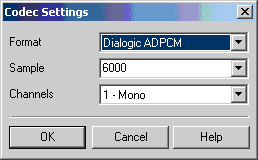
This will save the file as a .vox file extension. Rename the file with a .vap file extension. The Audio Importer program supports .vap file types.
**Always export and import VAP file types if possible!**
In the event the file volume needs to be adjusted, (commonly we need to turn the volume down):
- Open the .wav or .vox file (if you renamed it .vap, rename it back to .vox to re-open with WavPad).
- Select the entire recording with Control + A (or Edit >> Select All).
- Select Effects
- Select Amplify
- Select 25% or 50% to turn volume down (150% suggested value for volume up).
- Repeat this process if necessary to adjust the volume to desired level.
- Save a Dialogic ADPCM (.vox) file type when done.
- Rename the .vox extension to .vap.
Other editing program suggestions:
Blaze Media Pro: http://www.blazemp.com/If the Text Message Purge time is set to "0" zero, does the message ever get purged? When purged, does the system archive the messages before purging them from the account?
In Infinity Supervisor – System Setting – System Options – Purge/Backup is where you setup the system purge default. If the box “Required messages to be archived before they are purged” is checked, then the messages must first be archived before the system will purge them from the client index. Messages are archived in the Archiver program on a separate PC. To check the schedule, go to that PC and click on Start – Programs – Accessories – System Tools – Scheduled Tasks. This will tell you what time the system does the scheduled Archive and will show you that last date and time the Archive backup was preformed.
If you want to change the purge time for that particular client, you would enter the number of hours in the box and it will override the system purge setting for that client only (zero will purge per the default system setting). The same rule will apply for the client where Archiving is concerned as marked in the system settings “Required messages to be archived before they are purged”.
How do I get a URL to pop, as needed, from an Info Page when an account is fetched?
I would like this set up without enabling the “Pop to URL” under Operator Interface. I would like to fetch the account, and access the Web site only if needed.
To make this happen you need to put the URL with a dial string § on page one of the INFO pages and select the URL box:

Then on the OPERATOR INTERFACE, select the option “nothing”:

This will make it possible for you to access the account without having the URL pop every time that you access the account. If you need to bring up the URL, just F6 and it will be listed in the dial listing.
How do I program my accounts to extend overflow calls offsite after a certain number of calls?
Here is how to program the system so after 10 calls on account 123 you extend calls offsite.
Step 1:
Program the main account (123) for a 10-call limit then to overflow:
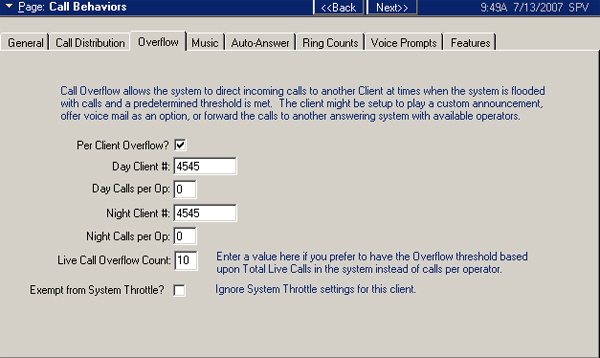
Step 2:
After 10 calls this will switch to account 4545. Account 4545 is configured for Standard Night, Standard Behavior Auto Attendant.
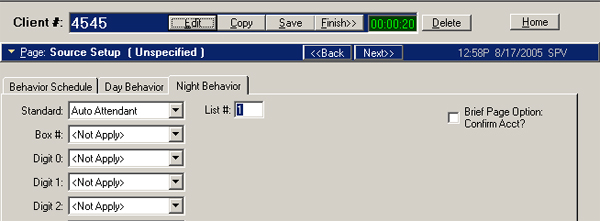
Step 3:
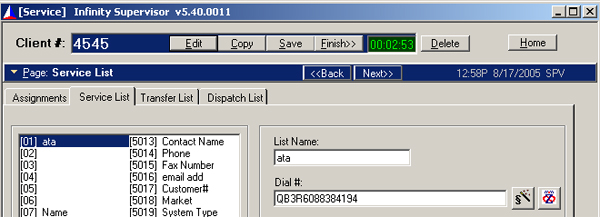
Program Service list 1 on account the overflow (4545) for Auto Attendant:
Dial #: QBxRPhone Number
Q – Patches the call
xR – The route that includes the span or trunks you wish to dial on.
PhoneNumber – Phone/DID number you are sending the call to.
How can you determine the correct media type for your Infinity system?
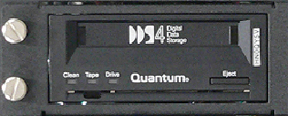
There are several options for tape cartridges; DDS (digital data storage) is categorized between DDS-1 thru DDS-4 (as of Feb., 2008). Attempting to use the wrong media type will generally result in the tape drive immediately ejecting the tape. To determine the correct media type for your system, check the end of the disk utilization report. The model of the tape drive is shown.
Drive Type
Infinity Reports
DDS
HP 34570-20150 2GB capacity DDS1 (HP 34570) 1 Seagate STD24000N 4GB capacity DDS2 (Archive 04687) 1 or 2 Seagate STD224000N 24GB capacity DDS3 (Archive 04106) 1 – 3 Seagate STD2401LW-SST 40GB capacity DDS4 (Seagate 9SP 40-000) 2 – 4 Seagate CD72LWH-SST 72GB capacity DDS4 (Seagate DAT72-000) 3 – 4 Always attempt to use the newest media type available for the drive model.

How do I get access to the log chat text information?
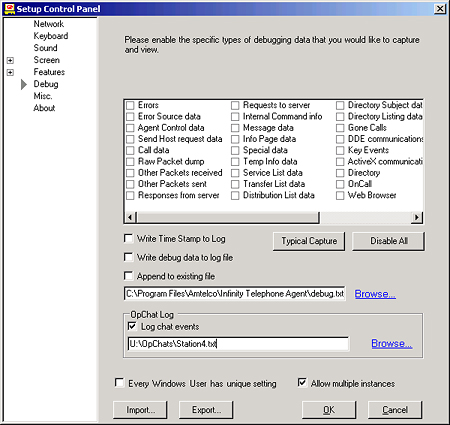
The information appears in the root of the Telephone Agent program at each workstation. To enable the log, go to the Telephone Agent – CTRL+F12 settings – Debug section, and check Log Chat Events. Once text saves, you will see a new file in the root of the Telephone Agent program. All workstation users require write access (permission) to the location specified. This location can also be a network drive (shown below).
We would like to have overflow calls go to some other call centers. How can we do this?
In Client Setup – Call Behaviors – Overflow, you can program your calls to do the very thing you want.
If you want to base the top value on total Live calls (RING, ZERO, AUTO) in the system, enter that value in the “Live Call Overflow Count”. Then in the Night Client #, program a bogus Infinity account number. (Night/Day follows the Behavior Night and Day.) On that bogus account, set the Night Behavior Standard to Auto Attendant, List 1. On Service List 1, program Q and the DID that points to the other call center.
If you want to base the top value on calls (live and non-live) per operator in the system, check the Per Client Overflow box. In the “Day/Night Calls per Op”, input the number of calls that can appear on an operator station for this account. Remember, this includes live and non-live calls. Let’s pretend you want 1. In the Night Client #, program a bogus Infinity account number. On that bogus account, set the Night Behavior Standard to Auto-Attendant, List 1. On Service List 1, program Q and the DID that points ot the other call center.
I recently had a new Op station installed and everything works perfectly except the station doesn't ring when a call comes in. Is there a way to fix this?
Check in the Ctrl + F12 settings under the heading of “Sound”. If you’re using a laptop, make sure you have “Use Multi Media Speakers” checked. If you’re using a Desktop PC with external speakers, use the same check mark. If you don’t have external speakers, check “Default Speaker Beep”.
Is there a way to sort messages by the date and time of the undelivered call?
In Message Management, there is a Message Sorting option. If you check this box, messages sort by icon – undelivered urgent, undelivered, delivered urgent, delivered, and delivered Specials. If you do not check this box, messages sort by time. With sorting enabled, the display of delivered messages changes based on the time when the operator delivers the message. If the operator takes a message and presses MSG DLVD, the message goes to the bottom of the delivered messages. If the operator takes a message, presses DONE, and later presses MSG DLVD, the message goes to the top of the delivered messages.
How can I install the Infinity Supervisor on another PC in our office and I also need to update versions on other stations?
All current software is available on our TechHelper Website.
- Go to service.amtelco.com
- Your Login Name = (The first 4 digits of your Field Service Support Code)
Password = (All 5 digits of your Field Service Support Code) - Click on the “Current Versions and New Software Versions” Link
- Click “Click here for software downloads“
- Read this page and click “I agree-Continue to software downloads“
- Under Main, click on “FTP Downloads“
- Your Login Name = amtelco2003/ (the first four digits of your Field Service Support Code)
Password = (all 5 digits of your Field Service Support Code) - Select the correct folder for your Infinity version. Choose which current server version such as 5.2 or 5.3?
- Click on the Supervisor folder
- Click on the folder with a version number
- Copy all files to a folder on the computer or on a network drive location accessible by all PCs.
- Run the application from the individual workstation
- Once downloaded, go to the login screen and press CTRL+F12. Input a unique Host Port or Station Number and the Infinity IP address
Does "Enhanced Status" allow you to record an account greeting for each status? Can you customize the "names" of the status?
Enhanced Status indeed allows you the ability to add an Account Greeting (i.e., Status Greeting) to each Status. In Telephone Agent, the sequence to save is MENU – V – C for Client Status Greeting. There is an option through the Check-in line too, but you also must give Account Greeting access. The sequence is 8 for User Options, 4 to record, any key to pause, 1 to save as Custom Greeting, and selecting the desired Status.
You the answering service can create your own Statuses in System Settings – System Configuration – Statuses – Custom Statuses. Your customers cannot create their own Statuses. For these Statuses, you need to record three recordings from an operator station and save by pressing MENU – V – U – and choose option.
For Example:
Let’s pretend the Status is AT THE BEACH:- “At the beach”
- “At the beach confirmed”
- “Change your status to ‘At the beach’”
The Status controls the greeting. If the operator from Telephone Agent or the client from the Voice Mail Check-in line changes the Status, the upfront greeting changes.
Is there a way to know which greeting played for the caller in reports?
There is no report on the type of greeting that played for each call. But Print Capture does present a Status Tracking history. In the non-networked version, click the View Reports button, select Status, and the account. In the networked version, click the Web Page button and search for Client Status.Can the system automatically announce the current date and time either at the beginning or after the end of the greeting?
The trigger for all of this is a Standard Behavior=FOLLOW ME. The Follow-Me Behavior for each Status=ANNOUNCE TIME. You can opt for the Infinity lady to play the Status by checking the “Following” box in the Options tab within Status.Here is a sample call flow:
- Caller hears the Status greeting: This is Joe Schmoe. I am unavailable at the moment.
- The Infinity lady and the Spectrum lady say: The current status is AT THE BEACH.
- The Infinity lady announces the date and time 2 times and then says, “Goodbye “.
We have a client that wants to record a voice message and have that account automatically call everyone on the list. What is the dial string for calling out and then playing the voice message?
The magic dial string ending is [
For Example:
8675309:[
You may need to add an ! at the end of the dial string: 8675309:[!On each account, you probably need to program Cancel AutoDial when to No Undelivered Voice Messages
or add a 1@1> to the dial string. You will keep receiving an AutoDial call with no option to check in.Is there a way to deliver a message each time a message is taken?
One simple solution is: Remote-print these messages out a serial port. The serial port doesn’t need anything connected to it. The dial string used must be for an ASCII (dumb terminal) printer. The dial string must be configured to auto page or auto-dial for the message to be automatically delivered.
The steps to configure messages for auto delivery:
1. Program a serial port with a unique route. Select Boards and Ports in Supervisor, Communication Port Setup. Select an unused serial port (from ports 1-8).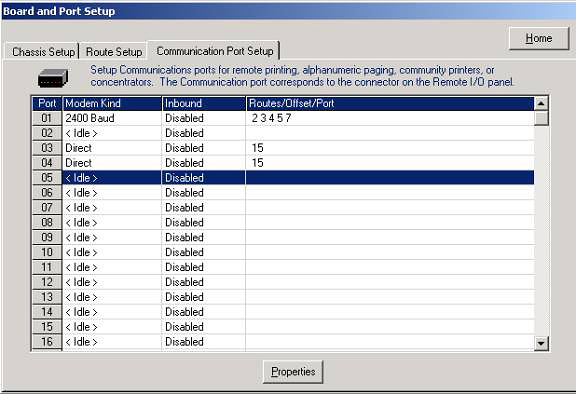
2. Configure this port by double clicking or select the port and chose Properties.
3. Configure the port for Direct Connect, the Inbound and Baud rate options do not apply the settings recommended are disabled and 9600,N,8,1 (default). Enable a unique route for this port. The route in this example is 98. The dial string route must match the route enabled here. A restart may be necessary to enable this route. AMTELCO Field Engineering may also be able to restart the modem port so a system restart isn’t necessary.
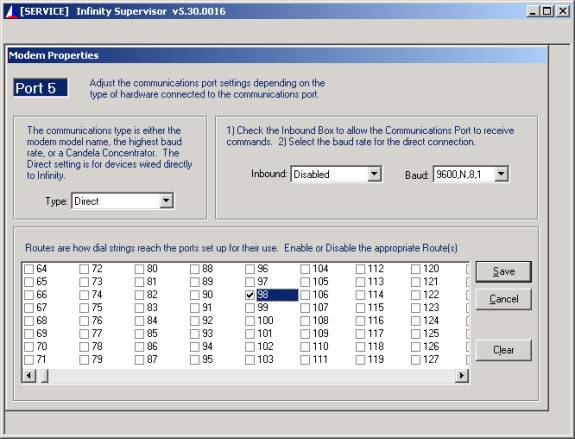
4. Program the account service list for a remote print, route 98 (this example), printer type of 0. The filter code may vary based on the results desired. The filter code in this sample string is 60, which delivers any undelivered message in the account, does not send specials. If other faxing or printing is used on this account, filter code 28 may be required to deliver the message.
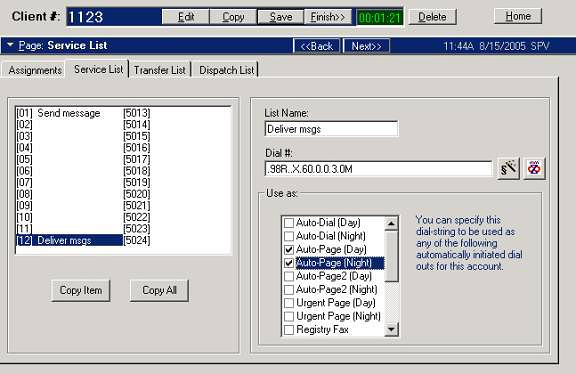
.98R..X.60.0.0.3.0M
.98R Matches the serial port route.
..X Clears call from the screen if manually dialed.
.60 Filter code
.0 EOL code
.0 Printer Type ASCII
.3 9600 Baud
.0M Remote print type dial stringHow do I get the quality assurance prompt to play?
The quality assurance prompt “For quality assurance purposes this call may be monitored or recorded” can be played to inbound callers that are being returned to an operator from voice mail or as part of the operator perfect answer.
Enabling the quality prompt without Perfect Answer:
1. Enable Quality Assurance in Client Setup – Call Behaviors – Voice Prompts as shown
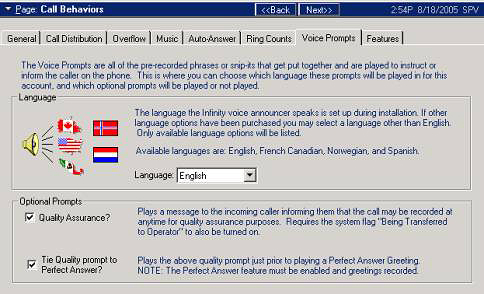
2. Record a greeting for inbound callers or program a digit in source setup so the call is treated as a zero call and is being returned from voice mail.
3. Enable the system option for the “Being transferred to Operator prompt”. This is a system wide option so all callers being returned to an operator from voice mail will now hear a message stating “You are being transferred to an operator”
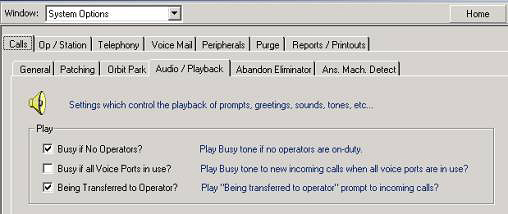
Note: A future option is planned so the return to operator portion of the greeting can be disabled for Quality Assurance callers.
Enabling the quality prompt with Perfect Answer:
Perfect Answer is a additional software item that may need to be purchased. Please check the system configuration tab to confirm this option is enabled.
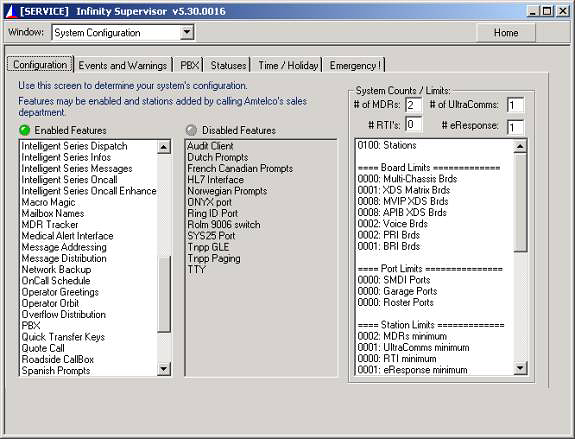
- Simply Enable the Tie Quality prompt to Perfect Answer option in the Client setup – Call Behaviors – Voice Prompt tab.
- The client setup and system options described above are not necessary. The caller will hear the Quality Assurance prompt after the perfect answer message is played.
- Configure each operator with a Perfect Answer Greeting number.
- Record the operator greetings as normal and enable the perfect answer option on the account.
I created a new client and when I call the number I don't hear ringing, I hear hold music until an operator answers.
The most common cause of this is that a digit has been programmed for a function in the source behavior, generally a greeting has not been recorded or the digit option shouldn’t be present. The system answers the call, waits for a digit, times out assigns the call to an operator after placing it on hold.
Solution: Record a greeting (so the caller hears instruction), or remove the digit entry:

What is Infinity network backup and what type of file does it back the Infinity server up to?
The network backup feature can be configured to back up the entire Infinity database to a dedicated machine on the Infinity network. The Infinity Network Backup Server is loaded with AMTELCO Network Backup software and has a dedicated partition that stores all the Infinity database information (Clients, Messages, Operator Setup Information, System Configuration, System Parameters). The Infinity Network Backup server requires a static IP address. The Network Backup Server must be equipped with a hard drive equal to or greater in size than the main Infinity server. Network Backup software is a software option that may be purchased for all Infinity Servers running version 5.20 and greater.
The Infinity Network Backup server can be dedicated as a backup target or can be a Telephone Server that can also function as a target for backup. The duration of the backups vary based on database size (number of clients, messages, directories, OnCall information). The network traffic during a network backup session is relatively high so low call traffic periods are recommended.
Normally the Network Backup Server is configured so it can be rebooted and tested as an Infinity Server through a boot menu. The Network backup server can be rebooted and tested when network backups are not being performed.
The network backup is initiated through the system schedule:
System Schedule – Add – Network Backup
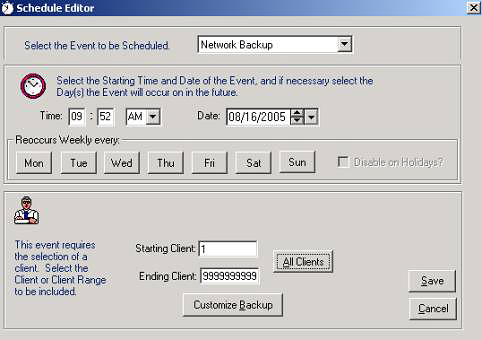
The network backup server requires a station number. The station number is programmed in the c:backupstation.ini file. The backup server normally has a c:mci directory with standard Infinity software so the server can be booted as a normal server and tested. The Infinity station number of the backup server is configured in the main Infinity server in the C:MCISTATION.INI
Example: netbackupstation=What components and files should be backed up on my Infinity system?
The Infinity Server should be backed up to tape regularly. AMTELCO Field Engineering recommends a separate tape for each day of the week. Tape manufacturers may specify a recommended number of hours of tape use before the tape cartridge should be replaced and tape drive should be cleaned. The average Infinity user should clean the tape drive once every week or two and replace the cartridges 2-4 times a year. The longer the tape backup the more often the tape drives should be cleaned. Tape backups can be executed through the Database Tab in Supervisor or can be scheduled through using the Infinity Schedule Tab.
AMTELCO Field Engineering should test backups quarterly
Files that should also be backed up:
• MDR
C:Program FilesMDR CaptureMDR.mdb
C:Program FilesMDR CaptureCTE.mdb• Network Archiver
C:Program FilesNetwork ArchiverArchive.mdb
You can verify the location of this file by entering setup of Network Archive (Control + F12)• UltraComm
C:Program FilesUltraCommClients.mdb
C:Program FilesUltraCommtasks.mdb
C:Program FilesUltraCommlog.mdb• Network Printer Capture
C:Amtelcoprinter capturemisc*.doc (all document files)• Voice Logger
Check with AMTELCO Field EngineeringI deleted an account by mistake. Can I restore one account from my backup tape? How can I test my backup tapes to be sure they are working?
The backup/restore routine would not be the best solution for this. If possible client import/export should be used to restore individual account information. Client import/export is a separate software module available on most versions of Infinity 5. At this time the restore program is intended for a complete system restore. The entire database must be initialized prior to performing a restore. AMTELCO Field Engineering can also restore information when the tape is sent in for evaluation. Tape evaluation is available to Service Contract customers up to 4 times a year at no cost. AMTELCO includes the results of the restore when the tape cartridge is returned.
Please contact AMTELCO Field Engineering to obtain an RMA for tape evaluation.
What is the procedure to send a part in for repair? Can I obtain a loaner part?
AMTELCO offers replacement parts, for most equipment, for our Service Contract Customers. All parts being returned to AMTELCO require Return Materials Authorization (RMA) numbers. Please obtain an RMA number by contacting AMTELCO Field Engineering at 1-800-553-7679 or through e-mail at service@amtelco.com.
Exchange parts can be requested when the RMA is generated by an AMTELCO Field Engineer. If the part is not under warranty the repair cost and shipping (faster than UPS) is billed to the customer.
When returning equipment please list the RMA number on the package near the AMTELCO address:
AMTELCO
4800 Curtin Drive
McFarland, WI 53558
RMA XXXXXWhen should I upgrade my Infinity software?
Infinity Server software upgrades (major) are generally released 1-2 times a year. Minor server releases may be available more often. Generally speaking AMTELCO Field Engineering recommends upgrading server and workstation software at least once a year. Minimally, AMTELCO Field Engineering, quarterly, should check system patches.
The standard procedure for troubleshooting workstation software issues is to first upgrade to the latest release corresponding to the Infinity Server version. Workstation software should always be upgraded in a test environment whenever possible. A good practice is to upgrade one or two machines that will be used on a regular basis for a few days prior to upgrading all machines.
If no workstation or server issues exist should you still upgrade software?
It still might be suggested to continuously test the new release of workstation software if possible in a test environment. Updating 1 or 2 machines each time software is released is a good way to test new features and monitor for software changes that may eventually affect all workstations.**Note: Please do not upgrade workstation or Server versions on Thursday afternoons, Fridays, weekends or holidays. In the event assistance is needed limited staff is available for hardware and software support. Also, if possible, try not to perform hardware changes or Microsoft software updates at the same time as AMTELCO software updates.
What is the password for my Infinity 5 system?
The password is normally configured by AMTELCO Field Engineering. The default Password is: PASSWORD (case sensitive).
Entering the password is not necessary for the system to operate. The system has completed booting when the password prompt is displayed.
Diagnostic commands are available in the 232M059 Infinity Installation and Maintenance manual.
What is the difference between a Cue and a Repeat?
Both options set a reminder; the account will be redisplayed at a later time.
Cues:Multiple cues can be set on any given account. Cues return to the operator and cannot be cancelled unless they are removed from the schedule.
Repeats:Only one repeat for each account can be set. This serves as a reminder that a dispatch may already be in progress. Repeats can be cancelled – this means if the client checks in or the operator performs a check in on the client account, the repeat will not return to the operator as a reminder.
Setting a repeat or a cue: Dial strings initiated by an operator with…
X> This dial string option sets a repeat (if not already set) for the time period specified (x). 15> would set a 15 minute repeat.
X< This dial string option sets a cue for the time period specified. Server versions 5.20 and greater required.Operator Initiated Repeat:
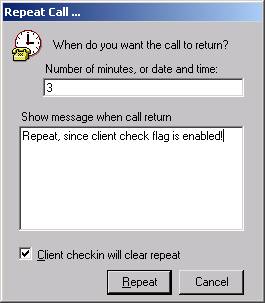
Operator Initiated Cue:
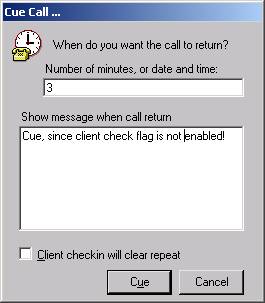
The Telephone Agent program can be configured so repeat can be the default selection. The following option is found in the Control + F12 configuration of Telephone Agent under the keyboard tab:

Additional Repeat Options:
The following client option cancels pending repeats if the operator presses the Checkin key. This is useful for clients that call their own DID number for check in.