Frequently Asked Questions
Intelligent Series
How do I import a script?
1. To upload a script file (.iif) to be used as a template, first navigate to a client in IS Supervisor.
2. Go to Intelligent Messages from the Navigation pane.
3. Select the brown box icon and choose “Import Script…”
4. Browse to and select the file you have stored outside of IS Supervisor – click Next.
5. Select “Script to Template” from the Msg. Script. Dest. drop-down.
6. Check the box for the file you intend to import and click Finish.Once the file has been imported as a template, it can be assigned to any client.
How to assign the script:
1. From the Template menu on the right-hand side of your screen, select the script template.
2. Click on the square with the black arrow facing LEFT and choose “Add”.
3. When ready, activate the script by clicking “Activate script for use”.How often should we perform updates on Amtelco servers?
At a minimum, it is recommended to update your Windows servers (Application, Web, etc.) quarterly and the Linux (Genesis) server biannually.
What can Genesis support for SIP protocol that the VoIP card cannot?
The transfer implementation is basically the same (both support refer-to and refer replaces) for blind and supervised transfers. Below outlines the differences between SIP and VoIP:
- Genesis, by default, transmits on UDP port 5060 and expects a reply on 5060. Genesis supports various ports for UDP signaling. We can specify different UDP ports for signaling. (Infinity cannot)
- Genesis supports TCP protocol for signaling and the signaling port can be adjusted. (Infinity supports UDP only)
- Genesis supports its own fix up and doesn’t require ALG (so it can specify a public IP when needed). (Infinity requires ALG when needed)
- Genesis does not transmit from various ports and expect a reply on 5060. (the VoIP card must behave this way)
- Genesis supports TLS. (Infinity does not)
- Genesis supports Stir/Shaken. (Infinity does not)
- Genesis supports e.164 outbound. (Infinity does not)
- Genesis has better support for prefix/suffix dialing based on number dialed than Infinity does. (Infinity has a prefix only on all call types)
- Genesis supports route statements. (Infinity does not)
- Genesis supports more simultaneous calls/sessions than Infinity. (Infinity is limited by hardware)
What is the format for audio files that are uploaded to Intelligent Series?
Files will need to be 8K 16bit Mono .wav files. Click here for information about converting files using Audacity. You can also reach out to Amtelco Field Service for assistance with converting files.
How do I get logs for a Soft Agent station?
Genesis Only1. On the PC where the issue occurred, open File Explorer
2. Navigate to the following file path: C:ProgramDataAmtelcoSoft AgentLogs
3. Highlight all of the files in the Logs folder (you can do this by clicking on one of the docs, holding down shift and arrowing down to highlight all files)
4. Once Highlighted, right-click select “send to” and then “Compressed (zipped) folder” and save to a location of your choice
5. E-mail Service@amtelco.com with the compressed folder attached
a. Be sure to include a detailed description of the issue (including PC Name, Agent name, screenshots, timestamps, reporting/call log information, etc.)
b. If your compressed file is large, please use our upload page instead of sending the attachment via email **You would still email service@amtelco.com or a specific tech you are working with that includes the details described above and that you have used the upload process for the log files)How do I update Reports?
Note: Before you update IS reports, you will need to know your DSN password! Please review the instructions below before proceeding.
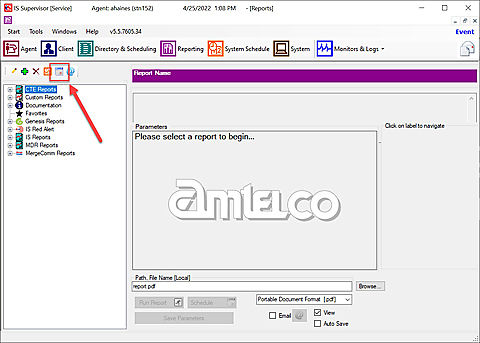
Go to IS Supervisor – System – Updates:
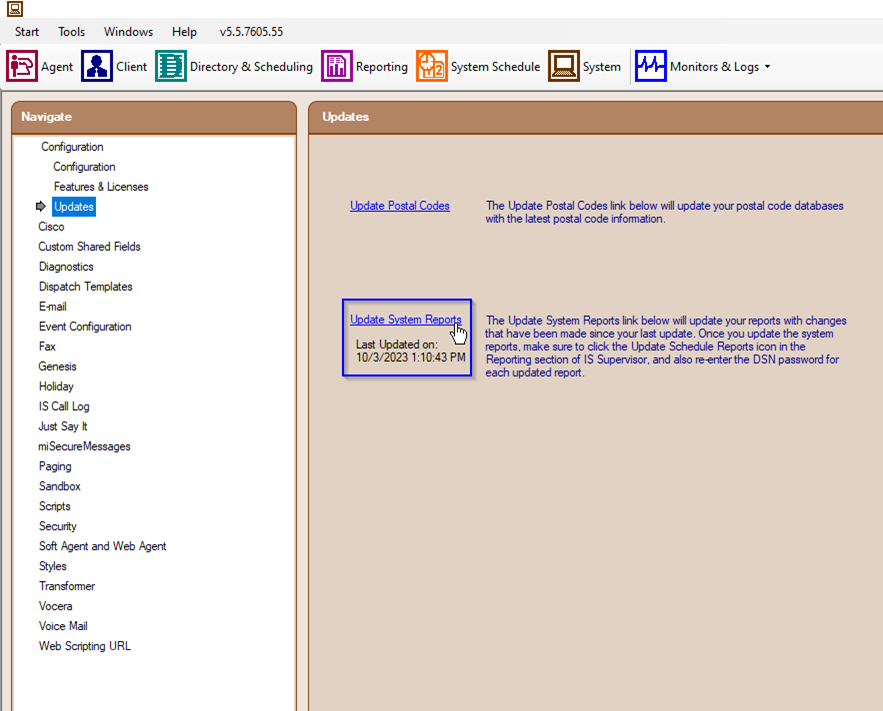
Select Update System Reports, wait a few minutes. Log out of IS Supervisor and log back in to check that the last update timestamp is current.
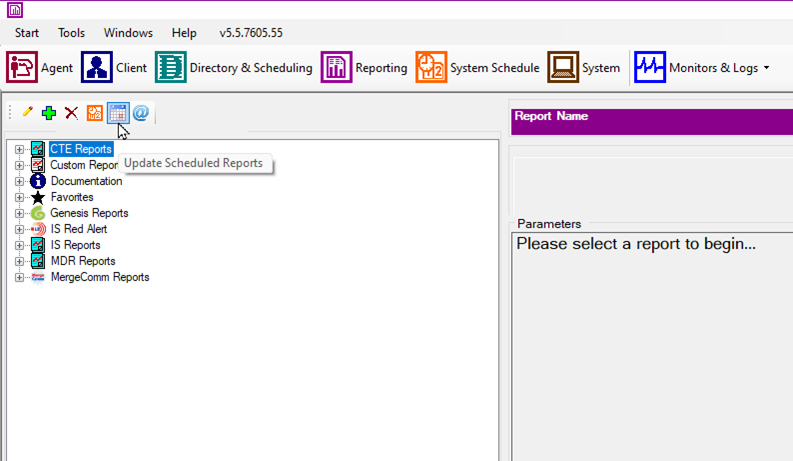
Next, open reports and select any of the IS Reports. Enter the password in the Report DSN area.
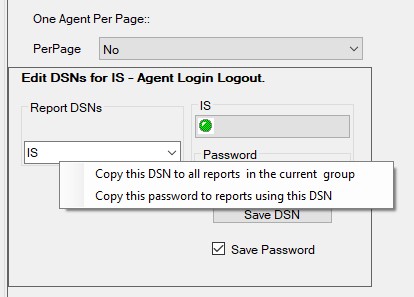
Lastly, under Report DSNs, Right-Click on the drop-down arrow and select “Copy this password to reports using this DSN”:
**If you have scheduled reports, you will also need to update your schedules to include any report parameters that have changed:
What does the “+more” option do in the Sandbox other than reset the search you just did? Is there any way to get rid of it?
Infinity Only“+more” relates to the Winop CTRL-F12 setting called number of results to search. Yours is probably defaulted to a lower number than you really want. This number tells the sandbox how many listings to return at a time for a search criteria, even if the number is not seen yet (that is determined in the “Number of Results to display” option). So if you are getting the “+more”, you can increase this number, perhaps to 100, to make it go away. If it still appears, you can inch it up higher until it rarely, if ever shows. It is not a good idea to go to the high end immediately, but rather to test and gauge how it is most effective in order to retain optimum speed on the sandbox.
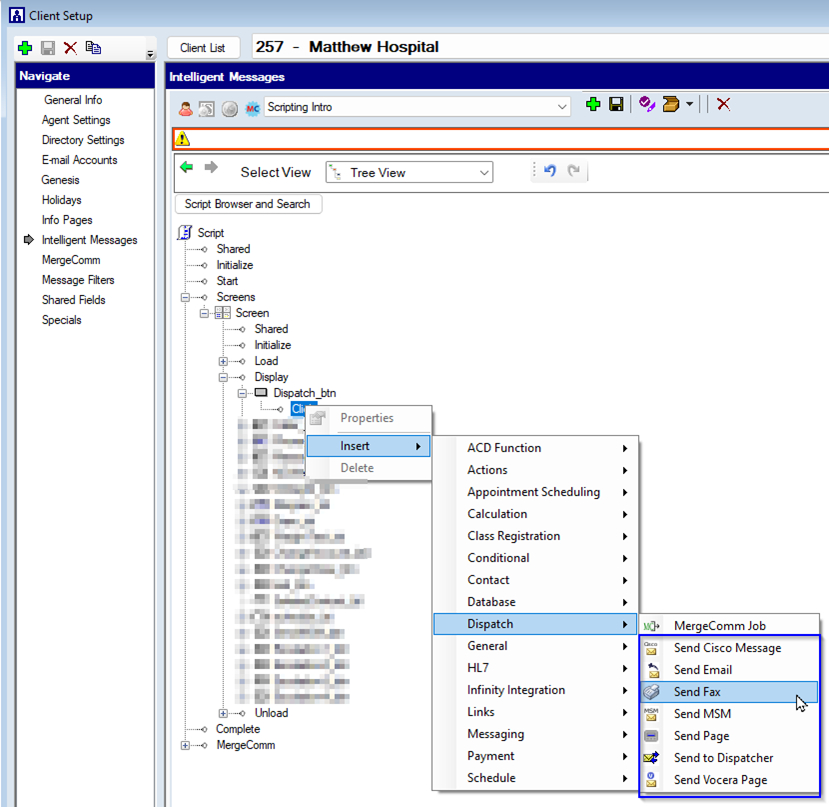
What are some of the different ways to send Message Summaries?
Cisco, Email, Fax, MSM, Pager, Dispatch and Vocera are some examples of ways to send a Message Summary.
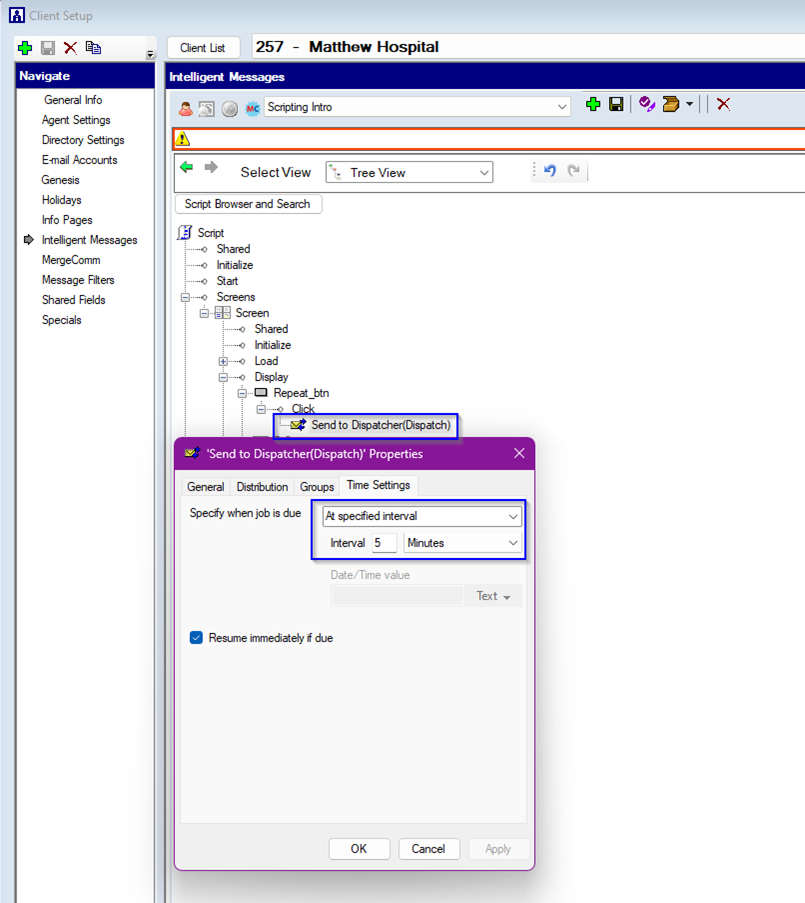
How do I set a basic repeat within a script?
On the “Send to Dispatcher” script action, under the Properties – Time Settings, choose what determines when the job is due and when the repeat will return the message to the operator.
Will the operator be able to see the message history?
Yes. Navigate to the client where the message has been saved to. Access your messages screen (such as through a function key or virtual keyboard), select the message in question and choose “Message History” from the right-hand side.
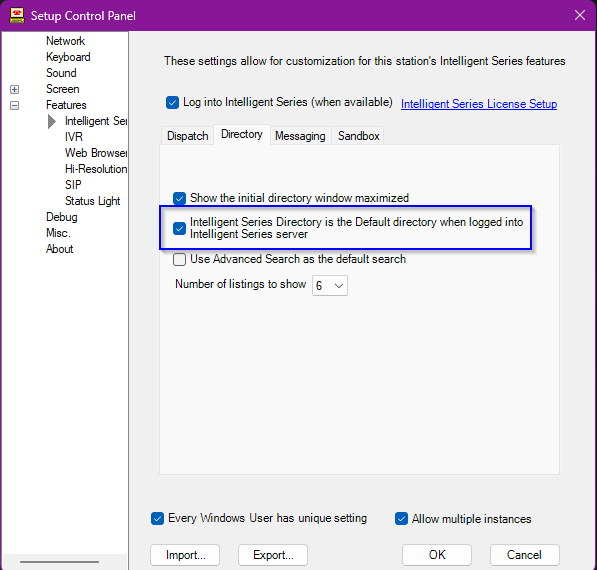
How do I use an Intelligent Directory in the Infinity Telephone Agent?
Infinity OnlyClick Ctrl + F12 at the login screen and going to Features – Intelligent Series; click on “Use Intelligent Directories” as Default. Be sure this box is uncheck to use Infinity Directories and NOT Intelligent Directories.
How do I link the Intelligent Series with Infinity?
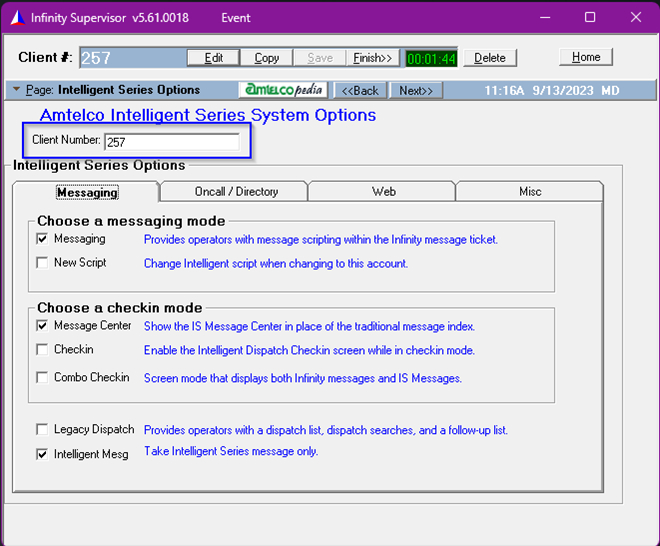
Infinity OnlyIn the Infinity Supervisor under Intelligent Series Options, type the Intelligent Client number and add the checkboxes that you would like to include (Messages, Directories, etc.).
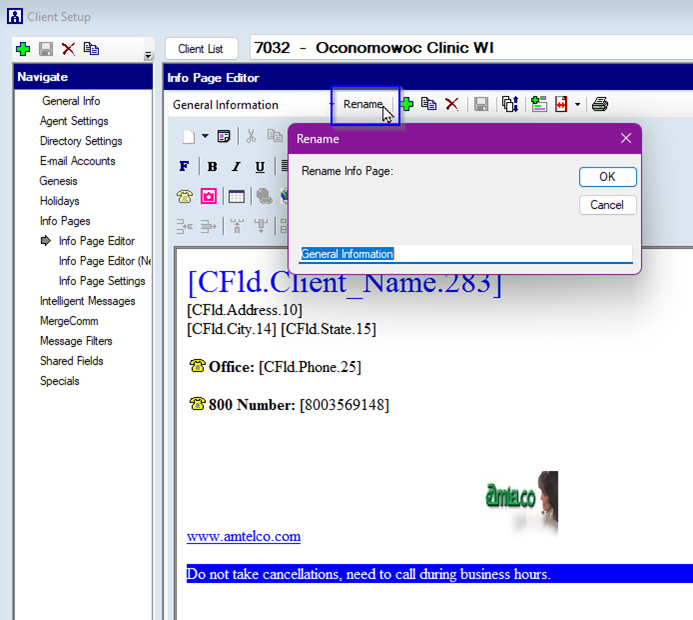
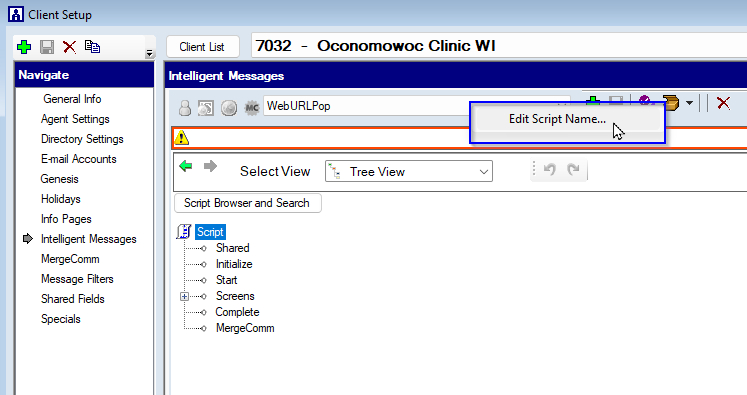
How do I change the name of a Script/Info Page?
Right click on the current name of the Script/Info Page, there is a change name option.
How do I pop a Web page in an external browser?
You can pop a Web page in an external browser from either an Info Page, or within a script.
For the Info page, you can display either the literal Web address or a common name.
1. Type out how you want your link to appear.
2. Highlight what you typed and click on the globe icon from the toolbar; this will pop the properties window.
3. Select (in the upper right corner) the “Link URL” radial.
4. Enter the literal address in the “Link URL” field.
5. Choose “_NewWindow” as the Frame Target.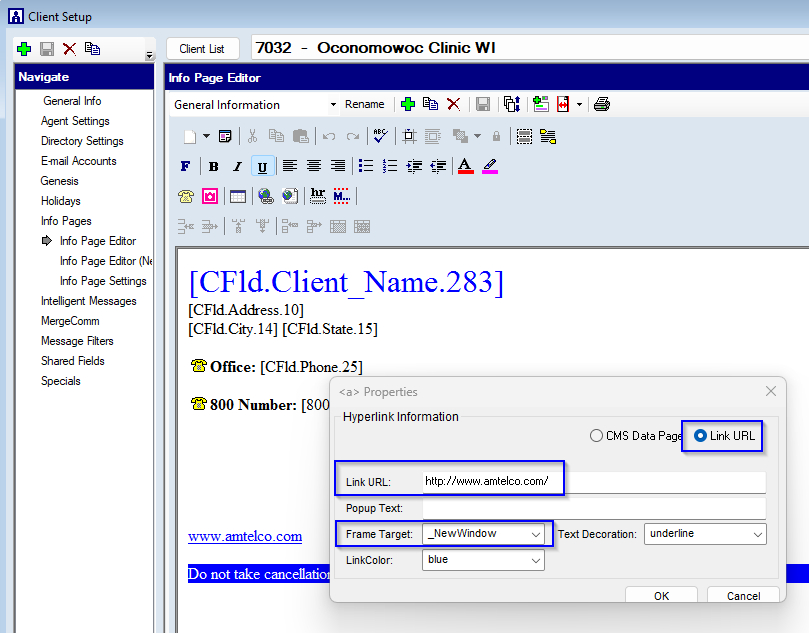
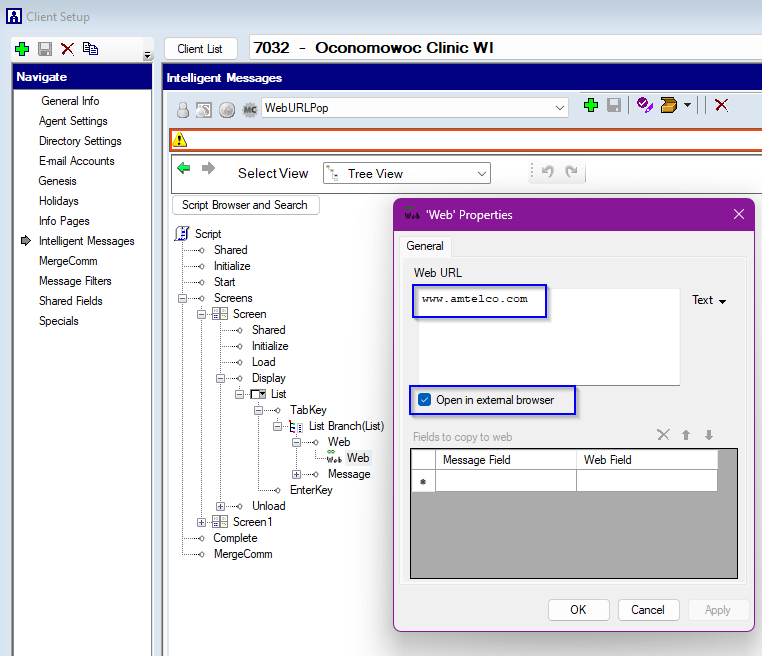
If you want to pop the Web page from a script:
1. Add the script element (such as a button or drop-down list) into the script and name the element through the properties window.
2. Next, label your script element as it will appear to the users. Such as, for a button, “Client’s Web site”.
3. On the “Action” tab (across the top of the properties), click on the “Add action when button is clicked”.
4. In the Actions Tool Box, add the “Web” action.
5. Add the URL for the web site.
6. Place a check in the box “Open in External Browser”.
7. Save your work and activate the script.